Desertcart purchases this item on your behalf and handles shipping, customs, and support to Colombia.
🖨️ Print smarter, faster, and worry-free — because your office deserves the best.
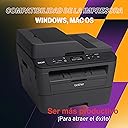
The Brother DCPL2540DW is a compact monochrome laser printer delivering high-quality prints at up to 30 ppm with automatic duplexing. Featuring wireless and wired connectivity, a 250-sheet adjustable tray, and Amazon Dash Replenishment for automatic toner ordering, it’s designed for seamless, efficient office productivity backed by a 1-year limited warranty and free lifetime phone support.


| ASIN | B00MFG57ZK |
| Additional Printer Functions | All In One |
| B&W Pages per Minute | 32 pages_per_minute |
| Best Sellers Rank | #357,572 in Office Products ( See Top 100 in Office Products ) #467 in Laser Computer Printers |
| Brand | Brother |
| Built-In Media | Duplex Unit, Phone Support |
| Color | Black |
| Compatible Devices | PC, Smartphones |
| Connectivity Technology | Ethernet, USB, Wi-Fi |
| Control Method | Voice |
| Controller Type | Amazon Alexa, Vera |
| Customer Reviews | 4.3 out of 5 stars 5,816 Reviews |
| Display Type | LCD |
| Duplex | Automatic |
| EU Spare Part Availability Duration | 1 years |
| Global Trade Identification Number | 00012502638858 |
| Hardware Interface | USB 2.0 |
| Initial Page Print Time | 2 seconds |
| Ink Color | black |
| Item Dimensions D x W x H | 15.7"D x 16.1"W x 12.5"H |
| Item Type Name | Color Laser Printer |
| Item Weight | 24.5 pounds |
| Manufacturer | Brother Printer |
| Maximum Copy Resolution Black and White | 3000 dpi |
| Maximum Media Size | 8.5 x 14 inch |
| Maximum Print Resolution Black and White | 3000 dpi |
| Maximum Sheet Capacity | 250 |
| Maximum print Resolution Color | 3000 dpi |
| Model Name | Brother Monochrome Laser Printer |
| Model Number | DCPL2540DW |
| Model Series | Monochrome Laser Printer |
| Number of Trays | 1 |
| Other Special Features of the Product | Auto Document Feeder, Auto-Duplex, Compact, Display Screen |
| Output sheet capacity | 250 |
| Paper Size | 12.5 |
| Power Consumption | 510 watts |
| Print media | Envelopes, Paper (plain) |
| Printer Connectivity Type | Ethernet, USB, Wi-Fi |
| Printer Output Type | Monochrome |
| Printer Type | Laser |
| Printing Technology | Laser |
| Resolution | 3000 x 3000 dpi |
| Scanner Type | Sheetfed |
| Special Feature | Auto Document Feeder , Auto-Duplex , Compact, Display Screen |
| Specific Uses For Product | Office |
| Total USB 2.0 Ports | 1 |
| Total Usb Ports | 1 |
| UPC | 012502638858 |
| Unit Count | 1 Count |
| Warranty Type | Limited Warranty |
| Wattage | 510 watts |
R**N
and is easy to navigate using the MENU
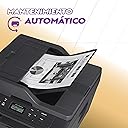
This Brother DCPL2540DW Monochrome Laser Multi Function Printer / Copier / Scanner has a small footprint, and comes with a 35 page automatic document feeder (ADF), adjustable 250 page capacity paper tray, starter toner cartridge, but not a USB cable (most printers these days don't ship with USB / printer cables anymore). The on-device control interface has a two-line lcd display and a few labeled buttons. The on-device menuing system is at most 3 levels deep only, and is easy to navigate using the MENU, +/UP, -/DOWN, OK, and STOP/EXIT buttons. The device is easy to set up for wireless printing, and if you have a USB / printer cable, for wired printing as well. The included Basic User's Guide is minimalistic but sufficient to get you started in the right direction, and a link to a fuller online user's guide is provided. I have a USB cable so I initially set this device up for wired printing from my Windows 8.1 computer. The device driver that's automatically installed after Windows detected the device is not a full-featured driver, so I installed the MFL-Pro Software Suite from the included CD. Once that software suite has been installed, if you bring up the Devices and Printers view from the Windows Control Panel and right-click on the icon for this printer, you'll see that the context menu that pops up has separate Printing Preferences and Printer Properties menu items. The Properties dialog box gives you options such as what pages of your document to print, and a check box to select or unselect duplex printing. The Preferences dialog box gives you options such as enable Print Preview, and Print Document with a custom settable Watermark (such as the word Confidential, or Draft, etc). After some initial testing of the printing and scanning functionalities (discussed more below), I went back to the MFL-Pro Software Suite mentioned above to set the device up for wireless operations, which required some software to be installed, detection of your network, and providing the appropriate password for your wireless network. The set up process was a breeze and I did not encounter any problem. * PRINTING The print speed is as advertised -- about 30 pages per minute (ppm), slower of course if you're printing double-sided. You can set resolution to 300, 600, and 1200 dpi. Both text and graphics outputs are clear and crisp. To save money, if the documents you're printing are not that important, you can enable 'Toner Save' option, and / or print multiple document pages per output page. I've done several 30-50 page print jobs, and have so far not experienced paper jams. You can use different sized paper, including legal and envelopes, by just adjusting the paper guides. Printing on envelopes requires more work that's described in the user's guide, but there is a cool video in the manufacturer's support website that shows you what to do. If you have the MFL-Pro Software Suite mentioned above installed, look for the Brother Utilities desktop icon and click on it, then choose Support -> On-line help and FAQ's. On the manufacturer's "FAQ's and Troubleshooting" web page that this gets you to, look for the Video FAQs in the "Other" category, and you'll see an entry for Printing on Envelopes. One thing I noticed with printing is that once a document is opened, changes to Printing Preferences (say, enabling or disabling printing watermarks) do not take effect until you close and reopen the document, which can come as a surprise to some. * SCANNING You can scan by putting your documents through the automatic document feeder or placing them one at a time onto the scanner glass. There is an on-device SCAN button that you can press, but I find it easier to control scanning using the software installed on my Windows computer. Click on the Brother Utilities desktop icon if you have the above-mentioned MFL-Pro Software Suite installed, then select SCAN -> ControlCenter4 (CC4). With the CC4, you can do Image or OCR scans, and save the results in formats such as JPEG, TIFF, Windows Bitmap, PNG, PDF, Searchable PDF, etc. By default, the results will be saved to labeled folders within the Control Center 4 folder under Documents>Pictures, unless you specify a different location. If you have a supported email application such as Microsoft Outlook, you can set things up so that scan results can be automatically attached to an email. Because I only use free web mail services (which are not supported), I wasn't able to test this functionality. Scanning speed is fast. In my testing, I can confirm that saving results into JPEG, PDF, and Searchable PDFs did work without a problem at all (I did not attempt to save the results into the other possible formats). * COPYING There are two limited ways you can achieve 2-sided copying if you want to save paper. The first way is to place the document you want to copy one page at a time onto the scanner glass. Before you start copying, press the on-device OPTION button to navigate to the Two-Sided menu option, temporarily enable it, then press the START button. With this method, you will be asked to manually flip the document when the device is ready to fill up the back of an output sheet. The second way is to feed the pages of your document through the automatic document feeder (ADF). Again, before you start copying, press the on-device OPTION button to navigate to the Two-Sided menu option, temporarily enable it, then press the START button. What you'll get is the following: Say you feed two sheets of paper to the ADF, and each sheet contains the word "FRONT" on one side, and "BACK" on the other side. If you stack these input sheets such that the sides with the word "FRONT" are facing UP, both sides of the single output sheet will contain the word "FRONT." So this method makes sense only if you want to save paper by copying single-sided inputs to double-sided outputs. * TONER CARTRIDGE You can replace the included starter toner cartridge with either the TN630 (max yield approximately 1200 pages) or TN660 (max yield approximately 2600 pages) cartridges. At the time of this review, the TN630 and TN660 are selling in Amazon for about 43 and 68 dollars, respectively.
O**R
Great machine that can print shipping labels.
I've had the printer for about four months at this point, so I figured that was long enough to write a fairly honest review (though I'll certainly update in the future as I have more experience with the printer). I'll start by saying that I love this printer so far. I've really had no negative experiences with it that would cause me to regret the purchase. If you're in the market for a laser printer, you'll be happy with this product. Ink consumption: As stated, I've had the printer for about 4 months, and with the "starter cartridge" supplied, I have about 1/3 ink left, which I feel is pretty good considering the amount I print. I've printed quite a few full images with the printer which uses a lot more ink than just text, so I consider that one reason the ink has gotten down to the 1/3 mark already. I also use "full quality" for most print jobs, though there is a "toner saver" feature if you want to really squeeze all the print jobs out you can. Quality: text is perfect, I have no issues. Image quality is decent for a laser printer, but I'd warn against buying this one if you need it primary for image printing. You'll be better off with a color printer. But, if you need to print out the occasional graph or something, it's not too shabby. But let's be honest, you don't buy a laser printer for great "photo quality" prints. This sucker is speedy. I don't time it, but usually by time I walk into the other room (My printer is in a different room than my computer), the print jobs are already done and waiting. The scanner works as hoped. The copier works perfectly. Really, nothing awful to report here. There is a small learning curve when using the automatic document feeder. If I remember correctly, it's only used when making copies, and not for scans. I may be wrong about that though. The wireless setup was a snap. I connected it, and then I just leave the printer "always on." It goes into "sleep mode" when idle, and wakes up for print jobs. I'm not certain, but I think this is actually better for electrical conservation in the long run, as startups and shutdowns use more electricity, generally speaking. This also ensures you don't have to wait very long for the printer to warm up. (Please let me know if I've got this wrong, or if it's bad to leave the machine on, but I think it's okay). One side note, since this was the biggest concern I had when purchasing the machine: You CAN print multiple shipping label sheets from the normal document feeder. The machine will prompt you to use the front facing feeder, where you have to feed in one sheet at a time, but it doesn't force you to do so. I usually just choose "widest thickness" for paper type, and then choose "labels" when printing. I've done up to about 6 sheets at a time, though I would warn against too many, as the hotter the machine gets, the more likely it is a sticker might peel from the label sheet and gum up the works. To be clear, this is not suggested by the retailer, and might even void the warranty if you were to have an issue, but so far, I've had no problems. Overall, this was a great value. The printer is going strong after 4 months of medium use, with most features being used.
J**A
Very nice upgrade from our old inkjet.
We got this to replace an older inkjet printer/copier/scanner. There are 2 basic versions of this machine, one with an included fax, and one without, which is the one I got. I got the impression from looking through the instruction manual (which covers both models) that the fax capability seems to add more complication in both setup and operation. If you do not need the fax capabilities, I believe this model would be much simpler to set up and operate. You can literally unpack it, plug it in, and begin copying. Getting it connected to the computer was painless, as well. I did not have a spare USB cable, so I did a wireless connection. The included CD had easy to follow instructions, which made connecting almost effortless. It did take a certain amount of time, to get all the drivers loaded, and to get the printer to communicate with my computer properly, but the process was more time consuming than difficult. Just follow the on-screen instructions from the CD, and you'll be fine. We have in-house Wi-fi and so far it has worked flawlessly. I REALLY like to be able to not have to be tethered to the computer. We have a small office, and I can easily carry this out to another room (is lightweight, and has convenient carry handles built-in) to make copies, and my wife can have the office to herself. If she needs to print something out, no problem. I just take a momentary pause from copying, for her project to print out. Printing is fast, and even the first page coming out of the 'cold' printer is reasonably quick. Although it will scan in color, it will only print or copy in black and white, so keep that in mind. We really didn't need color copying capability, to the point our old inkjet copier would dry out more ink than it would ever use. With this being a laser printer that uses dry toner, that will never be a problem. Print quality is very good. There also is a similar model that does not have the document feeder. For the $20 or so extra that I paid to get it, I would not be without. It does add about 4 inches of height to the unit, but the added weight is negligible, I'd say maybe a pound or so. It is attached to the lid, but there is a spring to counterbalance the weight, so the weight is not a problem, but it does need extra clearance for the feeder when the lid is open, but not much, the feeder adds very little to the height of the open lid. It has a 250 sheet paper tray underneath, as well as a slot for feeding individual sheets, envelopes, etc. The machine will automatically print from the individual feeder, if it detects something in it, otherwise it pulls a paper out of the lower tray. Feeding so far has been flawless from both the tray and sheet feeder, although I really haven't tried really heavy paper yet. Very happy with the purchase, and if it turns out to be durable, I may upgrade to 5 star. So far, the more I use it, the more I like it.
S**D
Great Printer and Easy setup once you know what to do.
This is my third Brother laser printer and this one is by far the best one I have had. My two others were MFP, print, fax and scan, but they were not wireless nor were they network printers, but I had them plugged in to the router so I could print on the network, but couldn't scan unless I was hooked up directly. It was time for a new drum and let's face it the cost of these have come down so much that it was time for a new printer with wireless capabilities. I haven't sent a fax in years so this was the machine I wanted. It was a fair price and I was ready to get it installed and ready to print. The setup was easy, but if you have a Mac or want to use AirPrint on your IOS device keeping its connected to the network after its connected is a challenge or at least for me it was. I am glad I didn't write this review before I figured out my issues, honestly I was about ready to return the machine, but I am so glad I didn't. There are reports all over the forums and on Amazon about this machined how it loses connection when going into "deep sleep" and in order to print, especially with a Mac you have to turn off the printer and then back on and even then it may not work. Also with AirPrint once it's in deep sleep AirPrint doesn't work from your IOS device either. One solution to this problem noted by Brother is to update the firmware. That's always a good thing, but it didn't work for me. After some searching for a few days I discovered it's not so much an issue with the printer as it is with the Mac itself. Mac recognizes network or wireless printers it finds with Bonjour. Unfortunately for some when the Brother printer is in deep sleep and the Mac has been "sleeping" and you wake up the Mac, Bonjour fails to connect. Not sure why, but for me that's what was happening. So to fix the issue instead of adding the printer through Bonjour, I added using the IP address of the printer and BAM.....it works like a charm. Finding the IP address is pretty simple, the manual tells you how to do it right from the printer. Now when I print, my Macs see the printer connection and wake up the printer to do a job, even in deep sleep, no issues. However, my IOS devices still could not see the printer once it went into deep sleep. The fix for this is even easier. Find the IP address and then type the IP address into your browser and it takes you to the printer's management page. From here all you need to do is check the box in the wireless tab to enable IPv6 and then submit. No need to do anything else, just check the box to enable IPv6 and submit. Now my IOS devices always see the AirPrinter and can print when ever it is needed without manually waking up the printer or restarting it. So now the printer is ready when I need it working as it was intended.
K**I
Great Printing, Best Bang For The Buck!
I got this printer to replace my 2 year old Epson Inket printer. I was tired of replacing the ink on the inkjet printer really often and the price per print ratio was horrible. After seeing a lot of positive reviews on Amazon about this, I decided to order this. The packaging it came in was simple packaging. The quick setup guide was right on the top and helped me quickly get the printer setup. The setup was the easiest I have ever seen on any printer. I am a techy guy and have setup a lots of printers in my life, but none were this easy. All I had to do was remove the packaging tapes, insert the toner, plug it in, and that is it. My computer does not have a CD ROM (I don't a lot of new laptops do) so I went straight to Brother's website and downloaded the drivers. While it was downloading I went to setup and connected to my wifi network (unlike another reviewer who said he could not connect to wifi directly from the printer, I was able to). Even though typing the password took a while since it doesnt have a keypad, it was worth it since its a one time process. Then I installed the drivers on the computer which was surprisingly easy and straightforward. Then I downloaded the Brother iPrint app for my Android phone as well. I tried printing and scanning from both computer and phone and everything worked seamlessly. Next thing I did was setup Google Cloud Print so I could print from anywhere, not just my local network. To do this, the instructions are a little unclear, but the Cloud Print Guide located here should help you out : https://www.google.com/webhp?sourceid=chrome-instant&ion=1&espv=2&ie=UTF-8#safe=off&q=brother%20cloud%20print Once I got the Cloud Print setup, I tried that too and everything just worked. I had issues printing a PDF file on the first try, but I am guessing it might have been because of my network. It just started working all of a sudden. The print quality was excellent. The contrast was great and the print quality was ages ahead of my inkjet. The scanner was surprisingly a lot better than I thought it would be. The images were crisp and it was really fast as well. Printing and scanning were really fast and felt like a bullet compared to my old inkjet. Being able to scan directly to my phone was handy, I was able to scan and share my hard copy photos on social media within minutes, never thought it would be that easy. One of the best features were push to computer. When you setup the drivers on your computer, it asks you if you want to enable the push to computer feature. If you enable that, printing the scan button on your printer will scan the document and store it on your Pictures folder, without any other interaction. The paper tray is big and cant fit a lot of paper, I dont know exactly how many but it's a lot. The automatic 35 page scanner feeder works wonders as well. The built in double sided printing feature was a pleasant surprise, and worked well and fast. So far I have been really satisfied with the printer. I would highly recommend it for Home / Small business usage.
S**J
3 calls, 75+ minutes with support and still no fix. Get me a baseball bat....
This printer was a huge mistake. I saw negative reviews but thought, "hey! I'm tech savvy, I can set up networks, I know how to add drivers, this won't be any problem." Huge. Mistake. This printer is a nightmare. While it wasn't difficult to set up at all once I put my wifi info into the printer's settings, it only works after I pull the plug and restart it every time. The sleep mode is a disaster, and I have tried every fix people have listed online. The printer goes to sleep and wont wake up. Printer controls work (on the physical printer only, not from the computer) but there is no way to wake it up, and I can't even turn it off (yes, I have held the power button down for up to 30 seconds-- nothing). ANY time I want to print I have to first walk over to the printer, unplug it from the wall, plug it back in, and wait for it to restart. In my first call to tech support, while the guy was super nice, he solved nothing. His "fix" was to connect me to the printer via IP address instead of letting my computer find it like it had (so now none of the controls worked properly). Lo and behold, the sleep problem persisted. When I called back the next day, the female agent told me that I just had to "wake the printer up" every time. She advised me to change the sleep timer (you can only move it up to 50 minutes, and it should be able to go to sleep anyway). Of course, the problem is if you don't push any buttons or print anything for 50 minutes..... you got it, the printer goes to sleep and wont wake up. So unless you're printing a document every 50 minutes at all hours of the day-- this printer is not for you! Now I am on hold again (20 minutes so far!) and I plan to tell them to send me a box to return this piece of junk. For the record: when it prints-- it works great! Maybe I just got a lemon, but I would not trust this printer to not be a mess for anyone else. I do not recommend the gamble involved. At least with a mac / OS X. Nightmare. And it's so big it's going to be such a pain to return. I seriously hate this thing. I thought it would be such a convenience and all it makes me want to do is smash it with a baseball bat like I'm in Office Space.
B**D
Excellent machine for either small or home office
This is an 18 month update. Unless you are making color photos or need to generate color slides for Microsoft Powerpoint presentations this does the job at a fraction of the cost of the ink jets for a small office or home office. This unit replaced two HP inkjet printers. In the 18 months of use I finally replaced the low capacity toner cartridge long after the low toner warning first appeared. I purchased the Brother OEM high capacity cartridge because there were a handful of reviewers who stated the non-OEM (ie, cheaper) cartridges would not print clearly or would not print at all - for unknown reasons. So why take a chance over a few dollars? The potential for headache and frustration is not worth it - my opinion. Pros: 1) fast printing 2) connects to my laptop (Windows 8.1) with no issues 3) easy to use though a little cumbersome with scanning multiple pages 4) decent on toner consumption 5) wireless 6) GREAT Customer Service - I've had a two problems over the past 18 months since I purchased this printer and both were related to scanning. Both times the machine would not scan. And when I called Brother tech support I got a live person with great English skills - both times. Each time the tech walked me through the process to get my printer to scan. The first time I was using a Windows 7 laptop (now deceased) and the tech walked me through the Windows 7 steps and waited until each was complete. The second time I spent 45 minutes on the phone with the tech. She waited until the software was downloaded, installed, and the printer was scanning. That has to be worth something - when a device stops working it's frustrating. And it always seems to know when you need it most. 7) After the software setup, my downtime has been next to zero over the 18 months of ownership. It took roughly 5 minutes to reinstall a new print cartridge 8) Brother includes a return label for your old toner cartridge. Use the replacement box and internal styrofoam to secure the old cartridge and you have nothing to throw away. Cons: 1) Scanning - it is cumbersome if you need to scan multiple pages of a report. This could be a deal breaker though I have not contacted Brother tech support as of yet. In order to scan you must turn on your computer. Upon scanning each page you must go through the printer protocol on the printer itself. Then you have to go back to your laptop because (I am assuming) the M/S operating system (8.1) provides a choice of scanning tools. As of yet, I don't know of a way to bypass this. 2) There is no fax option. While there is no fax you can still use an online fax service. From what I know about faxing, it is incompatible with digital phone services. Therefore if you need to fax you can use a service such as Nextiva for a few dollars per month. That option is certainly cheaper than running to the UPS store or even buying a phone service just for a separate fax machine. Overall my cost of ownership has been fairly low. Once the software was straightened out there have been no problems (other than the time needed for scanning).
D**G
Fantastic Machine: I have made over 16,000 copies and 4,000 scans. No problems
My 10 year old printer, for which I was spending 100s of dollars a year for ink cartridges, finally died. I spend a good deal of time looking at options for a multi-function laser printer (scan, copy, print) with an auto document feeder that would wireless scan and print and which I could print from my iPhone. I finally selected the Brother DCP-L2540DW after reading a large number of positive reviews. I was, however, very concerned with the price. At ~$100 dollars the price was low enough to make me really wonder if it would really do what the descriptions said. The printer arrived and was easily hooked up using a USB connection that I already had. I ran all functions multiple times without any problems including printing from my iPhone. I had some questions relative to installation of the software on a second computer so I called Brother. As noted by other reviewer it took a few minutes to get through but the individual I spoke was very knowledgeable and pleasant and quickly answered all my questions and offered to stay on the line till I had completed installation of a second machine. I did not use a USB connection for this installation but instead chose to do it all wirelessly. Wireless installation was very easy and went quickly without a hitch. The machine seems to be capable in all areas. I would categorize it as an exceptional deal for the money but caution that the materials of construction, hinge design, etc are not designed for heavy handed or heavy duty operation. But, they are more than sufficient if reasonable care is exercised. The only thing I would have liked was the ability to feed and print multiple envelopes but this is a minor thing. Have now used this printer regularly for about 6 months. It has performed flawlessly and met or, in most cases, exceeded my expectations. I do a lot of scanning and love the speed and ease the printer and document feeder deliver. I rarely recommend things but in this case I recommend it without reservation. After three months of fairly heavy usage I remain completely satisfied with the printer. No jams, no problems, good quality. Update. Printer now has made 16,000 copies and over 4,000 scans with no problems what so ever. Could not be happier
E**R
Excelente compra.
Es una excelente compra sobre todo si la encuentran con descuento, funciona bastante bien y rápida, accesible para usar con PC, laptop, celular o tablet ya sea por wifi o wifi-direct ojo que solo imprime blanco y negro. Llegó rápido y en tiempo.
L**R
Beware Import Tax
The product is fine but the company I bought it from is in the UK which means I was slapped with an additional €38 import tax. Amazon mentioned nothing about taxes on their page when I was purchasing. So it turned out to be a dearer printer than I planned.
H**8
Good price for a very good product!
Love, love, love this printer. I set it up wirelessly without any effort. Printer wizard recommended using a printer cable during the wireless setup. Its the first printer I have set up this way that I have not had any issues with. I am now able to print to all my android & apple devices, yay!!!! The toner cartridge that came with it isn't a full capacity cartridge but I did end up getting approx. 1100 copies out of it after I set the printer for continuous print. Which, for those of you that don't know, allows your printer to keep printing until the ink actually starts running out & the copies aren't clear. Such a nice feature to have rather than there be ink left in the cartridge that doesn't get used up. It is a nice compact size for a home office. There is no numeric keypad so if you want This 100 copies made you have to arrow up to your desired quantity. Maybe there is a way around this, I never checked the manual??? This printer/scanner/copier is very easy to use, super fast & I am very happy with its performance thus far. After doing quite a bit of research on multi function printers, I am very glad I picked this one. The price was very reasonable.
O**I
منتج ممتاز
حقيقي المنتج ممتاز و سعره مناسب جدا مقارنه بأسعار ماركات تانية جودة الصورة حلوه و سرعة الطباعة كويسه أستخدمه سهل إمكانيتها كويسه جدا و تستحمل شغل الحباره بتكفى طباعةعدد أوراق كتير من غير أى تقليل فى جودة الطباعة ارشحها بشده
N**E
Great machine, very happy
Considering I bought this while it was on sale, I can say it was definitely a steal. It was shipped straight in the manufacturer's box, which is very well padded and arrived without a scratch. Unboxing was a breeze. The machine and the Laser cartridge each have a clearly identifiable plastic orange strip to remove. Snapping the Laser cartridge into the drum and then inserting the drum (with the cartridge) into the machine is painless. Be sure to push the drum in firmly, as there's a small amount of extra wiggle room that may not be apparent. If you are going to connect your machine to the network via Wi-Fi, here is my experience. The machine supports 802.11b/g/n; note that 802.11n is 2.4 Ghz band only (no 5 Ghz). Do not start by pressing the "WiFi" button on the control panel, as this puts the machine into an endless state of trying to connect with default settings. Instead, go to Menu > Network > WLAN > Setup Wizard. The machine will scan for available SSIDs. The last item in the list allows to enter an SSID manually, and as my router does not broadcast its SSID, I chose this option. Unfortunately after painfully entering the SSID one character at a time using up/down keys, the machine asked for a WEP passphrase without offering WPA2 as an option. Fearing the worst (no support for WPA2?), I temporarily set my router broadcast its SSID. Selecting the SSID from the scanned list correctly asked for the WPA2 phrase and connected without issue. I used DHCP, but of course the options are there to manually set the gateway, static IP, subnet, etc. Warning: do not disable the Wired ethernet setting! There appears to be a bug that prevents the Wi-Fi from working properly if the Wired interface is disabled. I had to do a full network reset on the machine to restore. As a user of primarily Apple devices, I found it to be completely unnecessary to install any Brother software (either from CD or via download). OS X and iOS both work out-of-the-box via the AirPrint functionality the machine provides. The machine is automatically detected on the network - no need to go hunting for it. The printer works flawlessly, including double-sided printing. The scanner works great using the built-in OS X utility. Support includes use of the document feeder, DPI settings, detection of multiple items on the flatbed (perfect for scanning in old photos 4 at a time to separate output files), and output in various formats (TIFF, JPEG and PDF, among others). Scanning to PDF from the document feeder generates a single PDF document containing all pages. Android is mildly annoying as the operating system does not come with built-in AirPrint functionality. It took me a good 20 minutes to figure out how to set the printer up to use Google Cloud Print. Hint: you need to access the Web Based Management webpage of the machine. Once configured, install the "Cloud Print" app from Google onto the android device, and you are good to go! I did a quick check within Windows for the purpose of this review. While the printer and scanner appear to be available and useable without installing any additional software, I did note at least the lack of support for double-sided printing. Windows users are therefore likely advised to install the Brother software to ensure all features are available to use. I performed a firmware update for the machine, which completed successfully. The machine was shipped to me with version 'K', which was upgraded to version 'L' by the update. Check the download section on Brother's website or the firmware section of the Web Based Management tool for the ability to upgrade the firmware. As a smaller consumer model, this machine is only missing one useful feature: easy scanning and copying of double-sided documents. You cannot place a document that has print on both sides in the document feeder and instantly make scans or copies, as this model does not come with the technology required to automatically flip a document on the scanner flatbed. Do not be mistaken, you can in fact make copies of double-sided documents. It is just a matter of convenience as it is necessary to place the document on the flatbed to scan the first side, after which you flip the document over yourself to scan the other side. If you anticipate needing to make double-sided copies frequently, you may want to invest in a model with "Duplex Capabilities" that includes scan and copy. If I am not mistaken, this means purchasing an MFC model. All in all, this is great machine! I have not experienced a single issue thus far. While initial Wi-Fi setup could be made a bit easier (why doesn't pressing the "WiFi" button simply launch the Setup Wizard?), once you get configuration out of the way, everything works as flawlessly as you would expect. Great product if you are looking for a Black and White Laser printer and copier, with a colour scanner.
Trustpilot
2 months ago
2 days ago