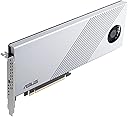
🚀 Unlock Next-Level Storage Speeds & Expandability — Don’t Get Left Behind!
The ASUS Hyper M.2 x16 Gen 4 expansion card transforms your PC with support for up to four PCIe 4.0 NVMe SSDs, delivering a combined bandwidth of up to 256Gbps. Featuring a robust two-phase power design and active cooling system, it ensures stable, high-speed data transfers without thermal throttling. Compatible with AMD TRX40/X570 and Intel platforms, this card offers flexible PCIe slot support and RAID-on-CPU functionality, making it the ultimate upgrade for professionals demanding cutting-edge storage performance.
| ASIN | B0863KK2BP |
| Best Sellers Rank | #25 in RAID Controllers |
| Brand | ASUS |
| Color | silver |
| Computer Memory Type | DDR5 SDRAM |
| Customer Reviews | 4.2 4.2 out of 5 stars (352) |
| Date First Available | March 20, 2020 |
| Item Dimensions LxWxH | 10.63 x 4.8 x 0.59 inches |
| Item Weight | 11.4 ounces |
| Item model number | HYPER M.2 X16 GEN 4 CARD |
| Language | English |
| Manufacturer | ASUS EUROPE B.V. |
| Memory Speed | 2133 MHz |
| Operating System | Windows |
| Product Dimensions | 10.63 x 4.8 x 0.59 inches |
| Series | HYPER M.2 X16 GEN 4 CARD |
| Standing screen display size | 16 Inches |
L**L
Works well!
Arrived in a timely manner and works great. Really sped up my data transfer rates since my motherboard didn't have inboard m.2 slots.
M**.
Great expansion card x16
Be sure to have a x16 Pcie slot. I put mine in an x8 Pcie slot and chose 4x4 in my bios. I was able to see the drives and download to them. Once I started running software i started crashing. I noticed I had put the card in an x8 slot instead of x16. Once I moved the card to the proper slot and chose 4x4x4x4 on the Pcie bios option everything has been running fast and stable.
T**D
Works great if you have a compatible motherboard
The ASUS Hyper M.2 x16 Gen 4 card works great if you have a compatible motherboard with 16 PCIe lanes available and support for bifurcation. However, there's a Gen 5 version at a similar price that's also backwards compatible. If you have the lanes and a lot of storage, this is a no-brainer, but in 2024, you'd need a specific reason to choose this over a Gen 5 alternative at a similar price point.
J**S
Has been a fast, solid performer in service
Very solid performance! System: PCIe3.0x16slot "bifurcated" Intel VROC RAID 0 (Lenovo ThinkStation P720; dual Intel Xeon 8160CPU, 338GB DDR4); RAID 0 setup via BIOS Intel VROC RAID. ASUS "HBA" filled with 4 @ 2T Samsung 990PRO NVMe Data x-fers via USB3.2gen2 USB drives are "fire and forget"... internal x-fers to RAID 10 also good, reliable data rates
L**L
X299 Folks Listen Up
The documentation, information available, and support for this card are awful and all over the place. Focusing on the X299 platform (i9-7900X paired with ASUS Prime Deluxe II), there are some things I'm going to quickly point out so that you can make an educated decision. In order to run a bootable BIOS RAID configuration, you MUST purchase the Intel VROC hardware key. This is a component that cost me $285 to procure and install inside of my motherboard. Once you have this key, here are the steps you must follow. 1) Install the Intel VROC key onto your motherboard. 2) install Hyper card into one of the PCIe slots. CAUTION: Some slots may only support a max total of x2 M.2 cards so, read the full motherboard compatibility guide on ASUS' website and see what slot you are required to use. This may or may not interfere with your graphics card placement. 3) From the BIOS, go to Advanced > CPU Storage and select the "Hyper VROC" option if you wish this to be your boot drive. Otherwise, set it to data as additional storage drives in Windows. 4) Boot your Windows 10 image and load the Intel VROC driver (located on the Hyper card's driver download page) from the Windows setup screen. 5) Refresh and continue the install with a RAID configuration. I wish there were more clear instructions. Even though this VROC vs RST stuff from Intel can get extremely confusing and it's their doing, ASUS could still provide better documentation on the matter.
R**C
It Works Flawlessly.
Works perfectly. HP Z8 recognized it and the Samsung M.2 drives. The drives run very cool in the enclosure.
M**S
Don't buy this.
Didn't work. Even in an x16 slot the machine wouldn't boot. All the compatible features were checked. Nothing would make this card work. Complete waste of money.
J**E
Works wonderfully
Bought x2 to carry M.2 storage for my homelab, needs 4x4x4x4 PCIe slot bifurcation (and a board that supports this in a x16 PCIe slot) to be able to use all drives so check this before you order. Installed both in my homelab Dell R730 servers (slots 4 and 6 support bifurcation - needs to be enabled in the BIOS) and working wonderfully populated with 4 x Micron 7400 Pro M.2 drives in each.
B**N
A learning experience. You can load the slots up, but very few motherboards can read all 4. So read the fine print and work out if you can get the most out of this device.
J**B
Die Karte funktioniert zu 100%! Auch mit 4 SSDs, wenn man weiß was man tut! Vorab, wer ein normales Motherboard (Office-PC, Gaming-PC) hat und auch eine Grafikkarte im System hat, wird es wahrscheinlich nicht schaffen mehr als 2 SSDs ans laufen zu bekommen und das auch nur unter Einbußen der Grafikkartenleistung. Die PCIe Lanes müssen halt aufgeteilt werden. Wer noch nie etwas von "PCIe Bifurcation" gehört hat oder weiß wieviel Lanes die PCIe Slots des Motherboards oder die verbaute CPU kann und wie man diese aufteilt, sollte spätestens jetzt aufhören zu lesen und die Karte nicht kaufen! Die Karte ist halt nichts für Laien! Um die volle Funktionalität der Karte nutzen zu können – insbesondere die Aufteilung des PCIe x16-Slots in vier x4-Lanes (PCIe Bifurcation) – muss dies im BIOS des Mainboards manuell konfiguriert werden. Viele Mainboards unterstützen diese Funktion nicht von Haus aus oder erfordern ein BIOS-Update. Eine falsche Einstellung kann dazu führen, dass die SSDs nicht erkannt werden oder das System instabil wird. Bei mir läuft die Karte unter Proxmox VE absolut stabil, es werden alle 4 SSDs (WD RED SN700) immer erkannt und die Karte erreicht auch einen ordentlichen Durchsatz. Eine SSD benutze ich für Snapshots innerhalb von Proxmox VE. 3 SSDs sind durchgereicht und laufen als Cache Pool im RaidZ1 in einer Unraid VM und das alles ohne Probleme.
C**/
I bought this to free up some PCI slots in my Dell Precision T7810 where I have GPU, Soundcard and multiple individual PCI NVMe disks installed. The card is well made with metal housing, included Thermal heat pads for each of the four NVMe drives and a fan to ensure good airflow inside the card housing. I have four 1Tb SSD drives installed, two are Samsung and two Sabrent and there's no issue with mixing disk brands. Installation was easy, but keep in mind this is a long PCI card so check you have enough room in the case. It's something of an exotic device aimed mostly at those with PC's capable of booting and running NVMe drives, but that are not new enough to have onboard dedicated M2 slot on their mainboard. This was the case with our Precision T7810 towers which run really well on NVMe disks but have a BIOS NVMe boot capacity limit of 1Tb meaning I cant simply put in a single or pair of 2Tb or higher NVME disks and be done. I opted then to install this card and after searching for and confirming that the T7810 will support the card went ahead and bought a couple of extra 1Tb Sabrent NVMe cards over Black Friday. You'll be best placed if you ensure you have the latest BIOS update installed first before migrating to this card. On the Precision T7810 it's a bit of a hit and miss process getting the system to power up and reach BIOS output on the monitor and we experienced long black screen issues at first, largely due to the number of different controllers on this Workstation and the huge scan time for the 64Gb ECC memory installed. After a bit of tweaking and a few hard power off cycles with the power button we eventually got to a working BIOS output on the monitor where the individual cards have to be configured in the drive and boot menu. Oddly as is normal for this card you can often find that at first full boot to Windows there will only be 2 of the 4 drives connected and visible in Device Manager. You just need to keep re-booting and refreshing Device manager. There are a couple of website guides telling you how to tweak the settings to overcome the two issues I've mentioned here. Once you have them installed and detected in Windows this card performs well, runs cool and allows you to avail of four high speed NVMe drives in either a RAID format, or as individual drives. In our case after reading up on the reliability of performance gains of pairing up the drives into a RAID 0,1 5 configuration we simply run them as standalone drives. The general consensus being that there's not a lot of improvement in real use performance with a RAID array but that it comes with much higher risk of catastrophic drive failure and data loss. The general feeling was that if you want higher disk throughput that you should move up to PCIe Gen 4 or PCIe Gen5 motherboards and that most of these come with pre-installed NVMe slots with a BIOS capable of booting from disk capacity greater than the 1Tb restriction on the Precision T7810. For the work we are doing the T7810 is now more than capable of whizzing through renders, design work and other high throughput operations without any really obvious delay to the user. We felt it's not worth upgrading to a PCIe Gen5 system as yet as the price premiums are very high as of Feb 2024 so we'll wait another few years until Gen 14 Intel i7 or i9 CPU machines with DDR5 and PCIe5 are much more affordable. So this ASUS card gives us all the space and throughput we need on our bombproof Dell T7810's and at a massive cost saving against going through another system upgrade cycle in the near future.
M**Z
Benim anakart ve işlemci pci express portunda z490 anakart i5 11400f işlemci ile sadece tek port çalışıyor normalde anakart ve işlemci pci slotu destegi varsa 4 ssdye kadar tanıyor bende 1 port çalıştı bu benim suçum işlemci desteğine bakmadan satın aldım .tek port çalışınca iade etmek zorunda kaldım
A**E
Ottima scheda PCI Express per l'utilizzo di SSD M2. Può essere utilizzata sia come 4x unità differenti sia come unità RAID per le schede madri compatibili. Attenzione però che la scheda è compatibile con quasi tutte le schede madri per l'utilizzo di 1 SSD, mentre se si vuole utilizzarne più d'uno dev'essere compatibile con i protocolli in descrizione. Ad esempio io, con il mio Alienware Area 51 R5 del 2019, che ha una scheda madre con chipset più vecchio di quelli compatibili, la scheda funziona ma anche se inserisco più di 1 SSD, uno soltanto verrà riconosciuto dal sistema. Nel mio caso volevo inserire 2 Samsung 980 Pro da 2Tb l'uno, ed uno soltanto è riconosciuto dal sistema. Sicuramente errore mio nel non essermi informato meglio precedentemente, ma non è poi così chiaro dalle informazioni della casa madre. Ad ogni modo, con 1 SSD funziona perfettamente, unità riconosciuta subito, veloce e funzionante. Soddisfatto ma darei più informazioni a riguardo.
Trustpilot
3 days ago
4 days ago