We remain fully operational. Our teams are working around the clock to ensure your deliveries continue safely.

Descargar la aplicación


Servicios al cliente
Sobre nosotros
Copyright © 2025 Desertcart Holdings Limited
Descargar la aplicación


Buy anything from 5,000+ international stores. One checkout price. No surprise fees. Join 2M+ shoppers on Desertcart.
Desertcart purchases this item on your behalf and handles shipping, customs, and support to Colombia.
🖱️ Master your workflow with the MX Master 3S — precision, speed, and style in one sleek package.
The Logitech MX Master 3S is a premium wireless mouse featuring an 8000 DPI Darkfield sensor for precise tracking on any surface, including glass. It offers ultra-fast, near-silent MagSpeed scrolling and quiet clicks, enhancing focus in professional environments. Designed ergonomically with customizable buttons and gesture controls, it supports multi-device connectivity via Bluetooth and Logi Bolt USB receiver. Built sustainably with recycled plastics and powered by a rechargeable battery lasting up to 70 days, it’s compatible across Windows, macOS, Linux, and Chrome OS, making it the ultimate productivity tool for multitasking professionals.









| ASIN | B09HM94VDS |
| Additional Features | Lightweight, Portable, Rechargeable, Wireless |
| Antenna Location | Office |
| Are Batteries Included | Yes |
| Are Batteries Required | Yes |
| Battery Average Life | 70 days |
| Best Sellers Rank | #98 in Computer Mice |
| Brand | Logitech |
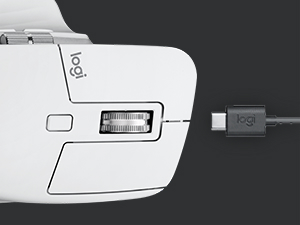
| Built-In Media | Mouse, Logi Bolt USB receiver, USB-C charging cable, user documentation |
| Button Quantity | 7 |
| Color | Graphite |
| Compatible Devices | Laptop, Personal Computer |
| Connectivity Technology | Radio Frequency , USB, Wi-Fi |
| Customer Reviews | 4.5 out of 5 stars 8,529 Reviews |
| Enclosure Material | Plastic |
| Hand Orientation | Left |
| Hardware Platform | Mac, PC |
| Item Dimensions L x W | 4.92"L x 3.32"W |
| Item Weight | 4.97 Ounces |
| Manufacturer | Logitech |
| Model Name | MX Master 3S |
| Model Number | 910-006557 |
| Mouse Maximum Sensitivity | 8000 Dots per Inch |
| Movement Detection | Optical |
| Movement Detection Technology | Optical |
| Number of Batteries | 1 Lithium Polymer batteries required. (included) |
| Number of Buttons | 7 |
| Operating System | Multi OS |
| Power Source | Battery Powered |
| Range | 10.0 meters |
| Special Feature | Lightweight, Portable, Rechargeable, Wireless |
| Style Name | Mouse |
| Theme | Computer Accessories |
| UPC | 097855174789 |
| Unit Count | 1.0 Count |
| Warranty Description | 1 Year Limited Hardware Warranty |
J**.
Best mouse I've used so far
This mouse is a nice upgrade from my previous one, also a Logitech mouse. The design feels more comfortable to use compared to the previous mouse I was using. The thumb wheel is very convenient when I need to scroll left or right in a spreadsheet. The left and right buttons have a satisfying quieter sound and the metal scroll wheel is great for scrolling quickly. This mouse has many options for assigning tasks for the buttons depending on your needs. It's well built, has a bit of weight to it which makes it feel more premium in my opinion. I've only had the mouse for close to a month, but I have not experienced any issues with it at all. The battery life is more than sufficient in my experience, and charging the mouse doesn't take hours. The option to connect via the USB connector or Bluetooth makes it easy to use on multiple devices, up to 3.
R**S
Finally decent scrolling on Windows
Pros: Scrolling 5/5 -Scrolling on Windows has always be light years behind Mac - even when using a track pad on Windows vs a stepped scroll wheel, the scroll feels jerky and inconsistent while Macs always feel buttery smooth and fluid no matter what device you use. This mouse with the scroll wheel in free spin "MagSpeed" mode is the closest I've ever felt a Windows machine scroll like a Mac. It really is super nice. I almost never put it into the stepped mode. I see a lot of comments talking about inconsistent scrolling on this mouse and I cannot say I have experienced that. For context I am using the Lightspeed connector and not Bluetooth, which I'm sure plays a large factor with the free spin. Let's look at the math behind that. Logitech claims Lightspeed has a 1ms response time, while bluetooth can be as low as 34ms but is often times more around 100-300ms. In "MagSpeed" mode at full spin speed, this mouse will do 1000 lines per second. So yes, for your computer to ingest those line signals it's going to need a 1ms response rate. I am also using Logitech's Options+ software which may also play a role in scrolling stability. Ergonomics 4/5 -Ergonomics feel really nice to me, but borderline too small. My glove size is between M and L (or 8 and 9), so if you are an L or larger hand maybe this won't work for you, but everyone's comfort is different. The thumb and palm sculpting is really nice and fills the hand nicely (depending on your size). The matte finish texturing also feels nice, I just hope it doesn't deteriorate over time. Logitech Options+ Software 5/5 -Being able to program the button map per application is a game changer (for me) and has really improved my work flow. DPI can also be adjusted here. Gesture Button 5/5 -The lower thumb "gesture" button gives back Mac like gestures to mouse users, something I sorta forgot I was missing but use it all the time now. DPI 5/5 -I found out 8k DPI is too high for my monitor, which was one of the deciding factors for me between this and the MX 3. I have a 49inch ultrawide 32:9 ratio monitor at 5120X1440 resolution, and I could feel the lower DPI of my old mouse on this monitor. However this one set to 8k is crazy fast - way too fast - so I currently have it set to 55% speed. Again lets look at the math - if you have a 8k monitor, this mouse set to max DPI is going to get from the left most side of the screen to the right most side in just 1inch of mouse travel. That's fast - you may find that 8K is overkill for your needs. That said, this is all easily adjustable in the Options+ software and it does feel WAY smoother than any mouse or trackpad I've used. I've yet to use this on glass - I'm sure the DPI helps in that regard. Click 4/5 -I honestly thought I wouldn't like having a silent click feel, and I like clicky keyboards as well, but it's growing on me. Enough so to make me rethink the type of keyboard I'm using. Click feel and sound ultimately comes down to preference, so all I can say is you feel the click, but it's barely audible. Search youtube or even Amazon reviews, I've seen sound comparisons with this mouse so judge for yourself. Cons: Ergonomics: -The lost point above is due to size - my fourth finger does rest on the desk, which was true of my previous mouse as well so I'm used to it but the experience would be better if there was a rest point or wing on the right side of this mouse. I don't know, this is again preference and hold style but for me I think I would have given a higher score for ergonomics if my pinky didn't touch the desk. Click: -Still on the fence on how silent the click is. Feel is good, sound is... well not there. So if you're used to a satisfying click sound this is going to be jarring. Update 4/13/2023 Custom Button Functions by App Glitch: When you use the Logi Options+ software to customize how the buttons function by app, sometimes there are glitches. It's not often, may happen once or twice a week, but it seems to forget how to behave from one app to another, and use the incorrect customized settings for the buttons. While mildly annoying, when I open up the Logi Options+ app, it seems to remember again immediately, or if I'm patient enough it will resolve itself after a few minutes without opening the Logi app. Probably a bug that occurs somewhere along the lines of app switching and having many windows open.
J**.
Love this mouse. So many features.
I have been a fan of the MX Performance mouse for quite a few years, and was bummed when I found out it was no longer available. I am one that wants more than a 3-button mouse and loves having the option of setting up various buttons to simplify various tasks. I decided to try the Logitech MX Master 3S mouse, and have been using it over 2 months. I love it even more than the MX Performance mouse. This mouse connects with the supplied Logi Bolt Receiver and configured using the Logi Options app which shows Logitech products connected to both the Bolt receiver and the Bluetooth receiver. I have the Logitech MX keys keyboard that is connected to the Bluetooth receiver that is internal on my computer but can still be configured using the Logi Options software. So, why do I love this mouse and prefer it over the MX Performance mouse? 1) The MX Master 3S mouse is covered with a soft rubberized covering that does not show fingerprints or collect oils from fingers. The MX Performance mouse is plastic and eventually collects oils that look grubby which needs cleaning. 2) After installing the Logi Options software, the Logi Bolt receiver was instantly seen on my computer and the MX Master 3S mouse was easy to install on my computer. 3) Using the Logi Options app, this mouse is so much easier to configure for different programs that may use the buttons differently. For the MX performance mouse, I had to configure it for different programs by entering a combination of keys. This is all supplied in the Logi Options app. You need only to select the apps you want the mouse to be compatible for. Some of the pictures are some of the Logi Option app screens. 4) The Logi Options app can also be used to configure Logitech products connected to the Logitech Bluetooth receiver. 5) There is no need for a mouse pad. This mouse works equally well on any surface. 6) The battery charge lasts for much longer than the MX Performance mouse. I have had this mouse over 2 months and use it for at least 5 hours or more every day. I have charged it once in that time. The only downside I can think of comparing this mouse to the MX Performance mouse is that the rechargeable battery is not replaceable. When the battery goes, you have to buy a new mouse. Other than that, this model is far superior to prior models for both performance and battery longevity between charges. If you need a new mouse and like to have options, I highly recommend this mouse. If my opinion changes, I will update this review. I hope this review was helpful for you.
S**M
comfortable, responsive, and packed with productivity-boosting features.
I've been using the Logitech MX Master 3S (Standard Edition) for both work and gaming, and it’s honestly one of the best mice I’ve used — especially if you have big hands and prefer comfort without sacrificing performance. Comfort & Ergonomics: Right away, the MX Master 3S felt much more comfortable than most standard mice. The larger, sculpted design supports my palm and thumb really well, which matters if you spend hours editing documents, coding, or grinding in games. My hand never felt fatigued even after long sessions. Performance: The sensor is very responsive, and tracking is smooth on most surfaces. It’s not marketed strictly as a gaming mouse, but in fast-paced games it still performs really well — precise cursor movement and consistent responsiveness. For professional work (spreadsheets, design, multitasking), it’s exceptionally good. Buttons & Features: I love the programmable buttons, especially the side thumb wheel and gesture button — they boost productivity in creative apps and everyday tasks. Logitech’s software makes remapping and setting custom actions easy. The Logi Bolt USB receiver and Bluetooth connectivity are both reliable, and switching between devices is seamless. Battery life has been impressive too — I’ve gone days without needing to recharge even with heavy use. A couple of things to know: Because of its larger size, it really does benefit big hands. If you have smaller hands, it might feel too big or awkward. It’s not the absolute best choice if your sole priority is competitive gaming — dedicated gaming mice with ultra-high polling rates and lightweight builds might edge it out there. But for a mix of gaming and professional work, it’s incredibly versatile. Overall: The Logitech MX Master 3S is excellent — comfortable, responsive, and packed with productivity-boosting features. It’s not just a “good work mouse”; it handles gaming better than most non-gaming mice I’ve tried. If you have bigger hands and want one mouse that does everything well, this one’s a top pick.
S**R
Good Quality Mouse and Software
Good for large right hand. The Logi Options software is awesome. so many options available and type C charge. Dongle is nice for use with mini computers. Very stable and precision all the way around. nice grip and feel.
D**S
Per App Configuibility & Modular Button Mapping
I am a huge fan of this mouse. I have two currently - one for home and one for the office. I have been using these for a while and the things that I like the best are the app-specific button mapping that Logi Options+ software provides the user. I spend a great deal of time in Excel, industry-specific document viewers, Word, Photophop, Lightroom, SketchUp, etc. I have a workflow that this mouse has greatly helped me smooth out through it's dynamic button map switching. Being able to map a series of keystrokes to perform on-the-fly screenshots, start an app, or navigate desktops is just what I needed when I first discovered this mouse. The horizontal scroll wheel is one of those things that you didn't know you needed until you have it. Excel gets a side scroll, while in my PDF viewer it is a Zoom, and on Photoshop it selects brushes. The Mag scroll wheel is incredibly intuitive. I appreciate that I can quickly switch to a stepped scroll wheel when needed, or enjoy the smooth scale-ramped scroll speed when I need to blast through a couple hundred pages in a document. One criticism, though minor, is I wish I could map multiple keystrokes or write macros to call on a button press. I feel that if I thought about it for a minute, I could figure out a way to do this, but that wouldn't be a suitable solution for the mainstream consumer. The new quiet buttons are REALLY nice also! Super smooth! Now folks can't tell that I am on my computer by the sound of clicking my mouse button while on the phone! I use a Razer/Human Scale ProClick for gaming as I do have macros that I have for a few games. But the Logitech MX-3S is my professional go-to. (I really don't love Razer's software as it feels intrusive - it feels like they are prioritizing the software funtionality and in-app marketing with equal priority, which stinks when you purchase fairly expensive peripherals.) I cannot download much software on my managed workstation, but thankfully my IT department people like the Logitech environment enough to allow this as a custom installation on their machines. This is currently my favorite mouse for work. Paired with the MX Keys, it's a winning combo!
D**S
Should Have Bought Sooner
When I tell you, DO NOT Hesitate to order, just order the damn thing. I used to have the cheapest mouse I could find. But one day I was tired of barely feeling a click in that mouse and constantly having wrist issues/comfort issues using that mouse. Well, one day I did research and damn near every article point right back at this mouse. Looking back, I completly understand why. The mouse just fits in your hand perfectly and the extra buttons, especially the scroll wheel on the side have made going through emails and pdfs much much easier. The freely spinning wheel is also very nice as it makes no noise and scrolls almost faster then the speed of light. I really can't recommend a better mouse and is worth every penny. Overall, the quality is just perfect, it looks great, easy to connect to many devices, and just glides so easy over any mouse pad. The only drawback is the weight but as for me, using a mouse for work it doesn't need to be light as a feather as I am not gaming at work. I would also recommend buying a case just to make sure you don't damage or get it dirty especially if you travel.
P**T
Good for 3 years...and the software terrible (on current Macs). Go with the Master 4.
Great mouse for 2 years, decent for a third, then stopped working (intermittent connectivity loss, left mouse button doesn't work, software glitchiness galore). I adored this mouse when it worked like a charm in sync with Logi+. Terrific tracking and customization, wonderful palm feel. About a year ago, the software started to glitch like crazy, with Logitech putting out a patch that didn't quite work. Seemingly out of no where a month ago, the left button stopped regularly responding and tracking reduced. Reading the other reviews, it seems this the norm...and I got more out this mouse than most. Considering I work from home and this the everyday go to, I shouldn't complain. Just purchased the Master 4, and couldn't be more pleased. I dig the additional weight, no button issues or lag anywhere, and the USB C Logi Bolt (versus A) plugs right into the back of the monitor. It's also compatible with my MX Keys, so easy swap in Logi+. If you're on the fence between the Master 3 and 4...spend the extra money. Also get the four year warranty (as I just did) if a button or software fail you.
Trustpilot
Hace 1 mes
Hace 3 días