We remain fully operational. Our teams are working around the clock to ensure your deliveries continue safely.
Descargar la aplicación


Servicios al cliente
Sobre nosotros
Copyright © 2025 Desertcart Holdings Limited
Descargar la aplicación

🎮 Own the game, share the glory, and never miss a beat!
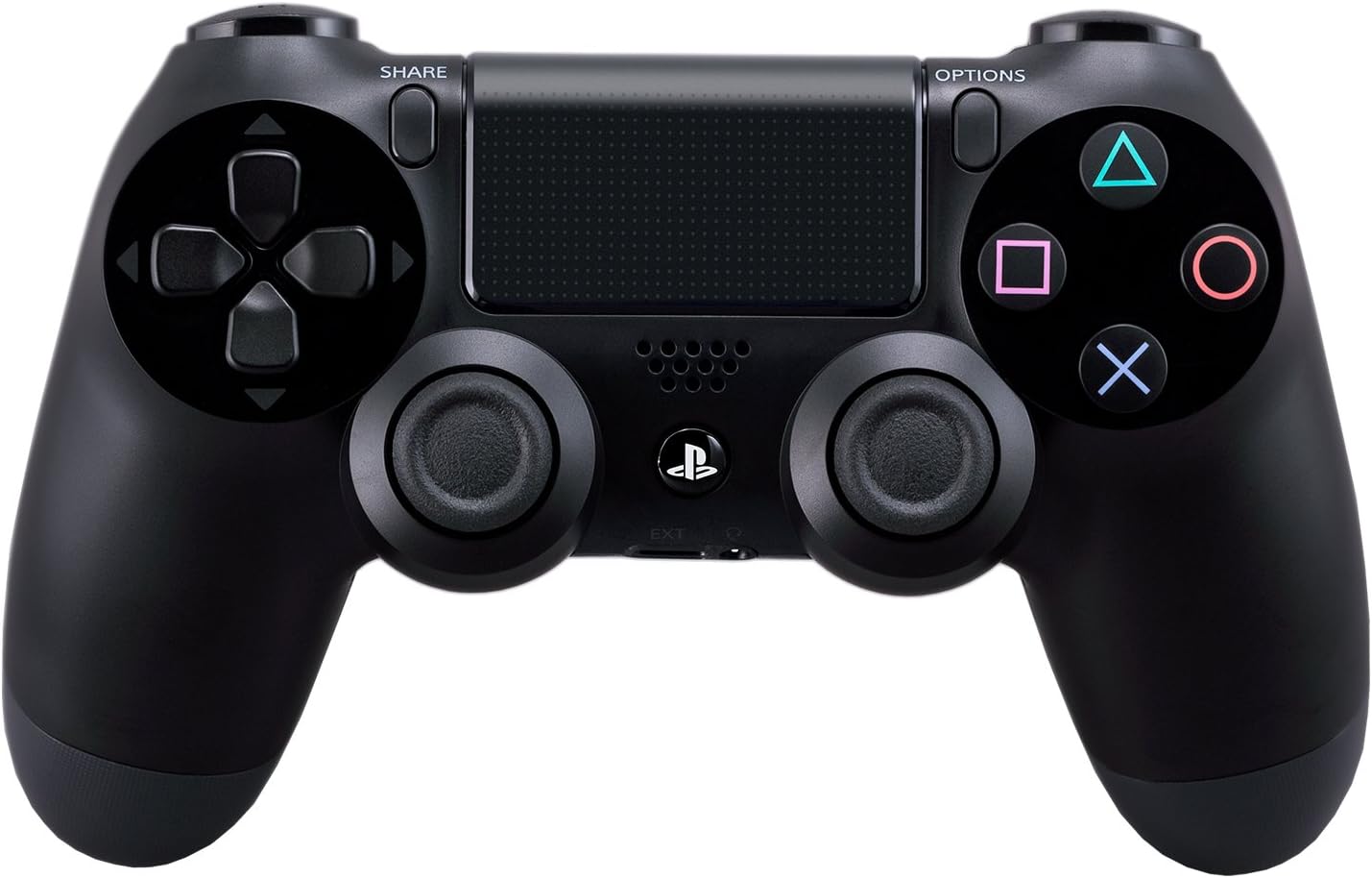
The DualShock 4 Wireless Controller for PlayStation 4 combines precision-engineered analog sticks and triggers with innovative features like a touchpad, integrated light bar, and built-in speaker. Its dedicated Share button enables effortless streaming and capturing of gameplay moments. Rechargeable via USB and compatible wirelessly with PS4 and Windows 8.1+ PCs, it’s the ultimate gamepad for immersive, versatile gaming.


| ASIN | B00BGA9X9W |
| Additional Features | Wireless |
| Best Sellers Rank | #13,249 in Video Games ( See Top 100 in Video Games ) #84 in PlayStation 4 Gamepads & Standard Controllers |
| Brand Name | PlayStation |
| Button Quantity | 13 |
| Color | Black |
| Compatible Devices | Playstation 4 |
| Compatible Video Game Console Models | Sony PlayStation 4 |
| Connectivity Technology | wireless |
| Controller Type | Gamepad |
| Customer Reviews | 4.6 4.6 out of 5 stars (6,825) |
| Global Trade Identification Number | 00711719100379, 20711719100342 |
| Hardware Platform | PlayStation 4 |
| Item Dimensions | 2.5 x 6.75 x 7.25 inches |
| Item Dimensions D x W x H | 2.5"D x 6.75"W x 2.5"H |
| Item Weight | 0.74 Pounds |
| Manufacturer | Sony PlayStation |
| Manufacturer Part Number | CUH-ZCT2 |
| Model Name | DualShock 4 Wireless Controller |
| Model Number | 10037 |
| Package Quantity | 1 |
| Power Source | Battery Powered |
| UPC | 714520304271 012301019216 711719100379 798762692358 |
M**R
This Will WORK WIRELESS on DESKTOP PCs Running WINDOWS 8.1 (64-Bit)
This is the best playing and best feeling gaming controller on the market, and yes, you can use it wirelessly (via Bluetooth) on a desktop PC running Windows 8.1. There are many tutorials on the internet that explain how to do this, but 4/5 methods I found and used completely failed. Most were intended for Windows 7 users. My rating for this controller is 5 stars because it is an outstanding contoller. The remainder of my review will be a quick tutorial on how to get it working quickly and easily any time you want to use it, without messing with your computer's settings or opening up the command prompt- so read on only if you want to know how to get it working on Windows 8.1 64-bit. If you have a somewhat newer laptop, you almost certainly have Bluetooth. If you have a desktop, there's a good chance you don't. Either way, open the control panel. Everything should be alphabetical, if you don't see a Bluetooth setting, you need a dongle to use the controller wirelessly. They're pretty cheap, but many aren't compatible with Windows 8+. This one worked for me and arrived in 2 days to Southern California, (with the "standard shipping" option), shipped in the same box as the controller I had purchased simultaneously: http://www.amazon.com/gp/product/B00EW3WS9M/ref=oh_aui_detailpage_o00_s00?ie=UTF8&psc=1 Install the Bluetooth software with the USB dongle plugged in. (I disabled most of the startup entries associated with the aftermarket Bluetooth and had no issues with it working properly afterwards). Bluetooth: Check. Next you need to download the latest XBox 360 device drivers for Windows. Microsoft will tell you that no further software is needed for Windows 8.1. Disregard and download the XBox 360 drivers for Windows 7 64-Bit and install. (You're free to disable the Xboxstat.exe startup entry). If you've researched this at all, you've probably heard that you need DS4Windows, (now know as "Inputmapper"), to get this to work. You don't. So don't download that program and don't donate money to make their ads go away. It's unnecessary and doesn't work, (in my experience), when the remote is wireless on 8.1. However, you DO need to download special software. Download the files needed here: [...] Open the zip folder and extract the entire "ScpServer" subfolder to C:\Program Files (x86). Plug in the Dualshock 4 controller via USB to Micro USB cable. (The same one you charge Android, and some Blackberry, phones with). Order one of those as well if you don't have one. Watch this video and follow all the steps up to 4:55 (STOP there as he makes the process overly complicated): [...] If you followed the aforementioned steps carefully, then all you should have to do to connect the Dualshock 4 to your Windows Bluetooth is hold down the Playstation button for a few seconds. It will blink a once or twice before Windows recognizes it. When the main light on the Dualshock 4 lights up red, your device is connected and should be recognized by your games. The downside to following this method is that your Bluetooth device will ONLY work for the Dualshock 4 controller, (it will no longer work for Bluetooth headphones, etc.). Also, games will think that you are using an X-Box controller, so when controller buttons are shown on screen, they will appear as X/Y/B/A instead of ⬛/🔺/X/🌑, and the main LED light will not change colors based on the game as they do when connected to a PS4.
C**S
Perfect for emulators on PCs
With DS4Tool this controller beats anything else for emulating classic consoles that use a D-pad. The face buttons, triggers and analog sticks work well and DS4Tool will also let you emulate a trackpad on the touch pad. The shape and feel of the controller is excellent, I couldn't ask for it to be made any more ergonomically. As of the time I'm writing this almost all buttons on the controller emulate well without any fuss and map properly in games as if it's a 360 controller. The L2 and R2 triggers may not work in all emulators because they're analog rather than digital. It doesn't seem to be possible to map anything to the PS button between the analog sticks yet. It seems the rumble will emulate but I haven't played a game that takes advantage of it to know just yet. DS4Tool will let you control the light bar with settings for the red, blue and green lights everywhere between 0-255 levels of intensity, or you can use it to display battery life and there's a check box to make it flash when the battery is low. Lastly, it doesn't seem to be possible yet to assign anything to clicking the touchpad. DS4Tool does currently let you use L1 for left click and R1 for right click and change the sensitivity of the touch pad, but even with a low sensitivity it's obvious the pad doesn't have much sensitivity as it will frequently jump around a few pixels if you move it just a small amount. It's much better if you're moving the mouse longer distances, this action is smooth but still not precise. I suggest using it with a sensitivity of 50 or less to make it less prominent. Overall there's an impressive degree of control over this controller on PCs already for such a new product (Windows 7 x64 via USB/bluetooth here). Highly recommended if you want a top notch quality controller for emulating D-pad heavy games or if you just prefer the layout of this controller more than the xbox's. I can say the quality is in every aspect much better than a generic logitech PC controller. It's been a long time since I tried either a dualshock 3 or 360 controller but I can say it's a big improvement over the dualshock 2 and definitely my favorite controller ever.
O**A
Lo he comprado principalmente para jugar en PC, basicamente puedo jugar a cualquier juego que sea compatible con el 360 gracias a un software de tecereros, muy facil de instalar y usar. La verdad que siempre he sido de Playstation, cuando jugaba en consola tuve todas las Playstation, descontanto la PS4. y ahora que he usado a PC como plataforma principal para jugar, vi la necesidad de tener un mando para algunos tipos de juego como Lucha, sandox en tercera persona, entre otros. Y parte de que he sido de PS toda mi vida, me hizo hacer totalmente a un lado al mando de Xbox One. Bueno, el DS4 esta muy bien construido, veo totalmente positiva la evolucion del DS3 al DS4, no es que tenga manos enormes, pero el DS3 me parece un poco pequeño, cosa que en el DS4 arreglan, la sensacion de los gatillos laterales es muy buena, como un gatillo se deberia de sentir. Los joysticks son sensacionales, amo la forma en la que están posicionados, cabe destacar que en PC puedes cambiar el color del LED posterior a tu gusto, me pareció excelente para poder hacer que combine con mi teclado y mouse. y lo mejor de todo es que te sirve para jugar con el PS3, lo unico malo es que el boton de PS no sirve en PS3 :/ Para conectarlo al PC cualquier cable tipo micro usb te servira, pero recuerda que el cable tiene que tener la capacidad de enviar y recibir datos. Tambien lo puedes conectar inalambricamente via bluetooth, si tu PC no tiene bluetooth puedes comprar un dongle bluetooth, los cuales no son muy costosos y te servira bien con eso. Creo que no me queda nada mas que decir por parte del mando, solo hablare del servicio de Amazon, lo pedi por amazon via importacion. con envió gratis y todo salio muy bien, llego antes de lo esperado, muy buen servicio. Ya habia ordenado un SSD en el pasado de la misma forma y también, todo excelente.
G**T
Good product🤘
E**A
Ottimo veramente
A**E
Neu, absolut empfehlenswert, robust und sehr zufrieden. Wurde schnell geliefert, so das wir auch schnell zocken konnten, top.
V**A
It said free delivery but there is actually a fee which wasn't on the information
Trustpilot
Hace 2 meses
Hace 2 semanas